
Key Takeaways
- Renting GPU power is useful when you need short-term capacity, high-memory GPUs, or burst compute without buying hardware.
- The basic workflow is similar across most GPU cloud platforms: choose a platform, select a GPU, pick an image, configure storage and access, deploy, connect, run, and shut down.
- Platform choice should stay practical: compare setup speed, GPU availability, storage behavior, support depth, and billing transparency.
- Before launch, check both compute and storage costs. Some disks or volumes may continue billing after compute stops.
- A concrete walkthrough is useful only after you know the platform type, GPU tier, storage plan, access method, and shutdown behavior you need.
Introduction
When you rent GPU power, you pay for remote GPU-backed compute instead of buying and maintaining your own GPU server. For AI development, fine-tuning, inference tests, image generation, rendering, and data workloads, that is often faster than sourcing hardware and keeping expensive cards idle between projects.
The hard part is not only finding a GPU. You also need to choose the right platform type, pick enough VRAM, select an image or template, move data into the instance, connect safely, and stop resources before costs drift. A good first rental should end with a working environment, a clear storage plan, and no surprise bill from an idle disk.
Why rent GPU power instead of buying a GPU?
Renting makes sense when the workload is temporary, uncertain, or larger than your local machine can handle. A single experiment may need an A100 or H100 for a few hours, while a local purchase would lock money into hardware, power, cooling, and maintenance.
Buying can still make sense when GPU usage is steady, predictable, and high enough to justify the upfront cost. It can also be better when data must stay on premises or when local latency matters more than elasticity.
| Situation | Better starting choice | Why |
| One-off experiment or proof of concept | Rent | You can test quickly without owning idle hardware afterward. |
| Short training or fine-tuning run | Rent | You pay for the project window instead of the full hardware lifecycle. |
| Continuous 24/7 workload for many months | Compare rent vs buy carefully | A local or reserved setup may become more economical if utilization stays high. |
| Need for A100/H100-class VRAM now | Rent | Cloud access is usually faster than buying and installing datacenter GPUs. |
| Strict local data requirement | Buy or private infrastructure | Moving data to a public cloud may not fit the security model. |
Use renting when speed, elasticity, and optionality matter. Consider buying only after the workload is busy enough to justify ownership.
What should you prepare before renting a GPU?
The fastest rentals start with a short checklist. Know the workload, memory need, software stack, data path, and shutdown plan before opening a console.
| Preparation item | What to decide before launch |
| Workload | Training, fine-tuning, inference, image generation, rendering, notebook work, or batch processing. |
| GPU memory | Estimate the minimum VRAM needed for the model, batch size, resolution, or dataset pipeline. |
| Software environment | Decide whether you need a base image, Docker image, PyTorch/CUDA stack, notebook, API server, or a provider template. |
| Data movement | Know whether you will upload files through a browser, use SCP/rsync, mount shared storage, or download from object storage. |
| Access method | Confirm whether the platform supports browser notebooks, SSH keys, password SSH, VS Code, or API access. |
| Persistent storage | Separate temporary scratch data from datasets, checkpoints, and outputs that must survive shutdown. |
| Budget limit | Set a maximum test window and know what happens after compute stops. |
For a first run, keep the scope small. Upload a sample dataset, run a smoke test, confirm the GPU is visible, then scale.
How do you choose a GPU cloud platform?
Platform choice should be neutral and workload-driven. The right provider for a quick notebook test may not be the right provider for enterprise infrastructure.
| Platform type | Best fit | Watch out for |
| Specialized GPU cloud | AI developers who want a GPU-focused console, faster setup, common AI images, and simpler rental workflows. | Availability, regions, support coverage, and template catalogs vary by provider. |
| Marketplace-style GPU rental | Price-sensitive users who are willing to compare hosts and accept more variation. | Host consistency, data persistence, network behavior, and support can differ across machines. |
| Hyperscaler GPU VM | Teams already standardized on AWS, Google Cloud, Azure, or similar infrastructure. | Quotas, region and zone availability, machine-family rules, driver setup, and account complexity. |
Specialized GPU clouds reduce setup work by focusing the console around GPU instances, images, storage, and developer access. Marketplace-style options can be attractive when cost hunting matters, but they require more diligence around reliability and data handling.
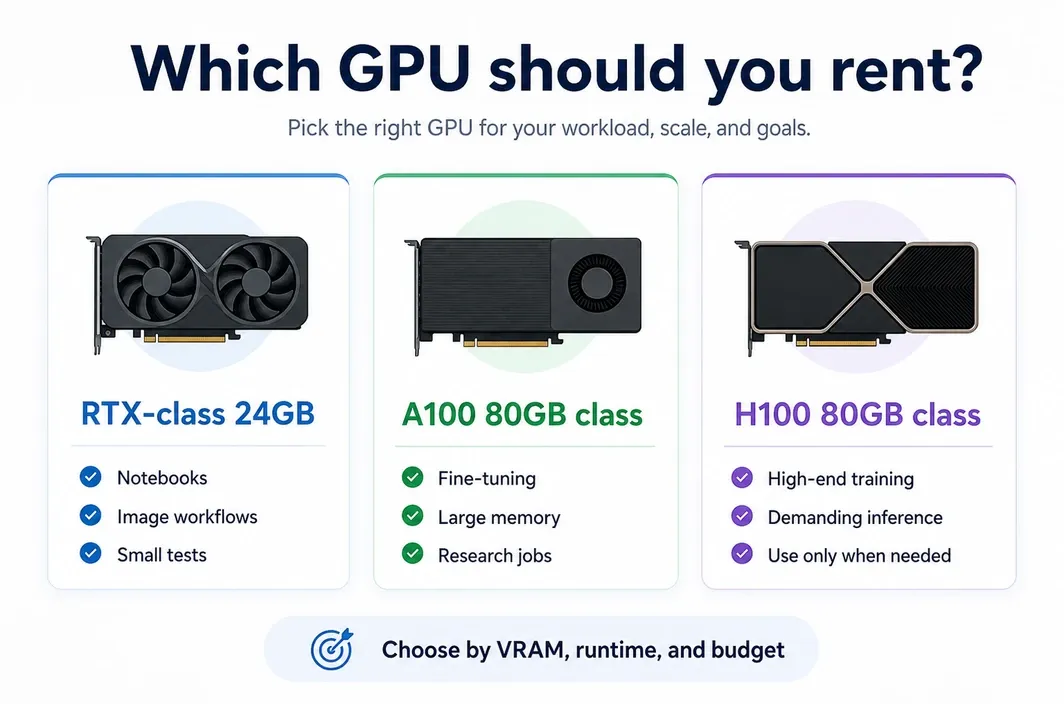
Which GPU should you rent?
Choose the GPU by memory, runtime, and workload shape. Do not start with the most expensive card by default.
| GPU tier | Typical fit | Main constraint |
| RTX-class 24GB GPU | Image generation, smaller notebooks, inference tests, lightweight fine-tuning, development experiments. | VRAM ceiling; large models or high batch sizes may not fit. |
| A100 80GB-class GPU | Larger fine-tuning, high-memory inference, research workflows, bigger batch sizes. | Higher cost than consumer GPUs; availability can vary. |
| H100 80GB-class GPU | High-end training, demanding inference, and workloads that can use top-tier datacenter GPU capacity. | Highest cost tier; unnecessary for many small tests. |
VRAM is usually the first hard limit. If the model, batch size, or image/video resolution does not fit, the job will fail or require slow offloading. After VRAM, check runtime, framework compatibility, and multi-GPU needs.
For a new workflow, rent the smallest GPU tier that can run a representative test. Upgrade only after the workload fits and the bottleneck is clear.
Step-by-step: how to rent and run your first GPU
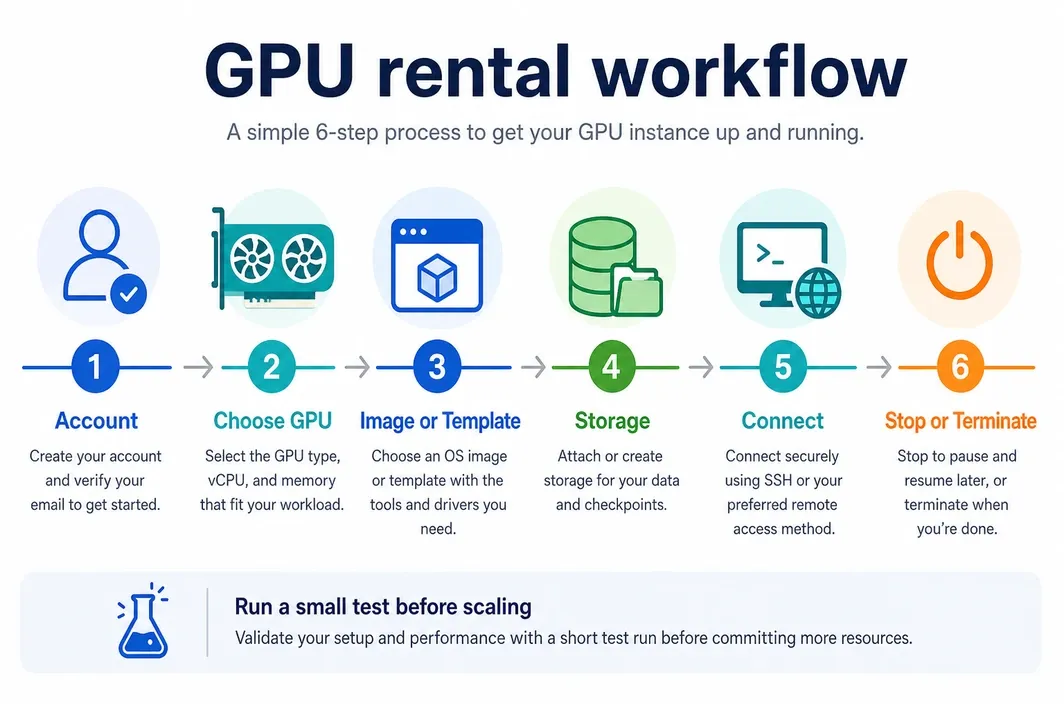
Most GPU cloud platforms follow the same basic workflow. Start by defining the workload and the minimum GPU memory it needs, then compare available GPU types, regions, and price models. Choose an image, storage, and access method that fit your toolchain, launch a small validation run, and monitor both usage and cost before scaling up. When the work is finished, preserve the data you need and stop or terminate the compute resources.
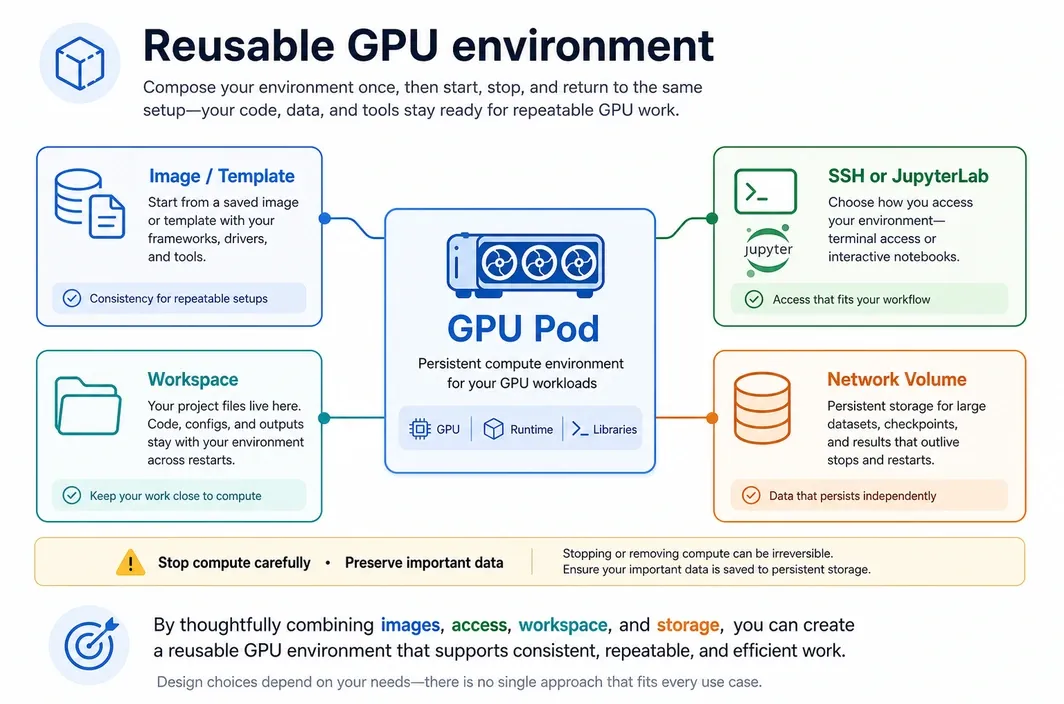
On RunC.ai, a first pass can stay close to that generic sequence: create an account, launch a GPU Pod, choose an image or template, connect through SSH or JupyterLab when the image supports it, plan storage, then stop or terminate with the data caveats in mind.
- Define the workload and minimum GPU memory.
Decide whether you need an RTX-class GPU, A100-class GPU, or H100-class GPU. Write down the framework, CUDA requirement, and first command you want to run.
- Create an account and prepare billing.
You can sign up through Google, GitHub, or email, then adding credit and reviewing billing methods. For any provider, review current promotions, coupon terms, and minimum top-up rules before adding funds.
- Choose the platform location.
Pick a data center or region close enough to your data and users. Confirm live GPU availability before building the rest of the environment.
- Select an image or template.
On RunC.ai, the flow starts from the Explore page, where you select a basic VM/POD image or a community image. Check the current image catalog before launch because templates and versions change.
- Choose GPU model and count.
Start with one GPU unless your workload already needs multi-GPU execution. More GPUs increase cost and can add software complexity.
- Configure storage. Keep temporary files separate from datasets and checkpoints.
- Pick the billing cycle.
Choose on-demand for tests and uncertain workloads. Consider prepaid or monthly options only after the workload pattern is clear.
- Deploy the instance.
- Connect to the instance.
Recommend SSH key access and also document password SSH from the instance Connect panel.
- Upload data.
JupyterLab availability depends on the image, with container images generally supporting JupyterLab login. The same docs describe JupyterLab upload as file-only, while SCP supports remote copy for files or folders.
- Run a smoke test.
Start with nvidia-smi, then run a minimal framework check such as importing PyTorch and confirming CUDA access.
- Stop or terminate deliberately.
Stop a Pod clears data in the container volume but preserves /workspace; stopped instances can still incur disk volume storage charges. Terminating a Pod permanently deletes associated data not stored in a network volume.
How much does renting GPU power cost?
GPU rental cost usually has four parts: GPU compute, runtime, GPU count, and storage. Some providers also charge for public IPs, data transfer, managed services, support, or persistent volumes.
Cost = Instance Unit Price x Billing Duration x Number of Cards
For RunC.ai, the public pricing lists 1x RTX 4090 at \$0.42/h and \$252/m, 1x A100 at \$1.60/h and \$896/m, and 1x H100 at \$2.56/h and \$1580/m. Treat those as dated examples, not permanent rates.
Storage needs its own check. RunC.ai lists container/system disk above the 100GB free quota at \$0.003/GB/day, volume/data disk at \$0.003/GB/day, network volume at \$0.002/GB/day, and image volume at \$0.001/GB/day.
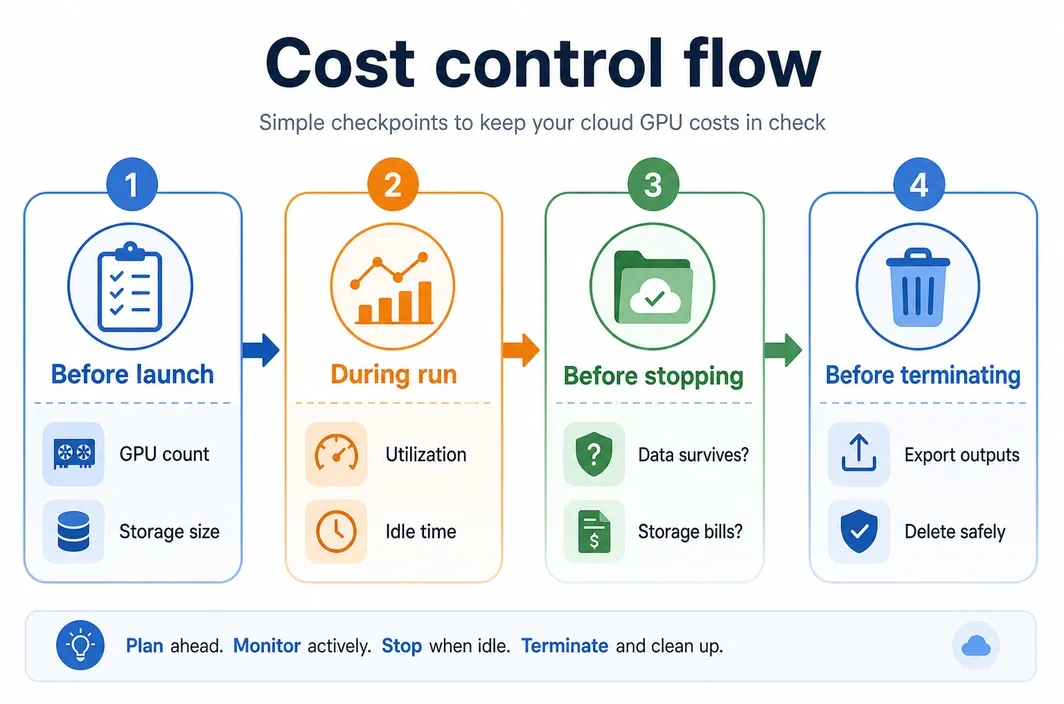
| Cost check | What to verify |
| Before launch | GPU hourly or cycle price, GPU count, expected runtime, storage size, billing start condition, and promotion terms. |
| During the run | GPU utilization, idle time, failed jobs, logs, and whether a smaller or larger GPU would be more efficient. |
| Before stopping | Which data survives, which disks continue billing, and whether checkpoints have been exported. |
| Before terminating | Whether all needed files are in persistent storage or downloaded locally. |
Tips for first-time GPU renters
Start small.
A ten-minute test on one GPU is better than a long run on the wrong image.
Protect persistent data.
Treat temporary instance storage as disposable unless the provider's docs say otherwise.
Watch stopped resources.
Stopping compute often stops GPU charges, but storage may continue billing. Termination may delete data.
Avoid overfitting to a template name.
Templates and community images are convenient, but availability and versions can change.
Use SSH keys for repeatable work.
Browser notebooks are fast for exploration, but larger uploads and automation usually work better with SSH-based workflows.
FAQ
Can I rent a GPU for only a few hours?
Yes. Many GPU cloud platforms offer on-demand rental suitable for short tests or temporary workloads. Check the provider's minimum billing unit, shutdown behavior, and storage charges before assuming the total cost is only the visible GPU hourly rate.
Do I need Docker to rent GPU power?
Not always. Some platforms provide base images, notebooks, or templates that work without writing your own Dockerfile. Docker becomes useful when you need reproducible dependencies, a custom environment, or the same setup across providers.
Is JupyterLab always available on rented GPUs?
No. JupyterLab or browser notebook access depends on the provider and the selected image. RunC's Upload Data docs checked June 26, 2026, say JupyterLab support depends on the image, with container images generally supporting JupyterLab login.
What happens to my files when I stop or terminate a GPU instance?
It depends on the provider and storage type. On RunC, docs checked June 26, 2026, say stopping a Pod clears container volume data but preserves /workspace, while terminating a Pod deletes associated data not stored in a network volume. Always export important outputs before termination.
Is renting cheaper than buying a GPU?
Renting is often better for short, uncertain, or bursty workloads because you avoid hardware purchase and idle capacity. Buying may be cheaper when utilization is steady for long periods and you can manage power, cooling, maintenance, and upgrades.
Conclusion
The safest way to rent gpu power is to make one small, complete run before scaling. Choose the platform type, pick the smallest GPU that fits, verify the current image catalog and pricing page, upload a small sample, run a smoke test, and confirm what happens when you stop or terminate the instance.
If a GPU-focused path matches your workflow, start in RunC.ai with a GPU Pod, confirm the current price and image/template options, choose SSH or JupyterLab access based on the selected image, and plan storage before running a full job.

Member discussion: